HockeyStack Academy 102 - Step 2.2 - Create your KPI goals
In this step you will learn how to create your own KPI Goals
Read the below guide on goals before proceeding:
Before this step, you organized all information needed for your KPI goals like below:
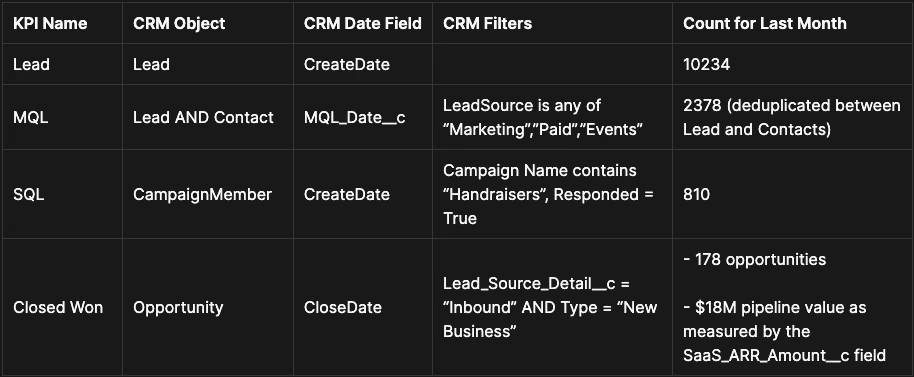
Now, we will translate each KPI into a Goal in HockeyStack. We will use the above table as an example.
If your KPI definition contains date field that is:
- Create date of an object
- The date of a deal stage change, tracked in deal histories
- The date of a lead status change in Salesforce, or a lifecycle stage change in HubSpot
- The Opportunity CloseDate from Salesforce, which is converted into “Deal Moved to Closed Won” and “Deal Moved to Closed Lost” actions out of the box
you can build it as a goal without any additional configuration. If your KPI definition contains a custom date field, follow Track Date Properties steps in the below guide to be able to convert the date field into an action:
Navigate to Definitions > Goals from the sidebar to get started after you complete the previous step.
Click on the + icon on the top right to create a new goal.
Let’s take Lead from our KPIs above as the example. This KPI uses the CreateDate of the lead object. Therefore it can be tracked using the Lead Created action.
The MQL definition above is a bit more complex, with a custom date field and some filters attached.
- Refer back to the Track Date Properties guide. The custom date field will be converted to an action named “Lead Property Changed”.
- Refer to the Salesforce fields list below to see that LeadSource on the Lead object is being mapped to a property called “contact_source”.
Properties Pulled from Salesforce
- Refer to the Regex guide in the article below to quickly do the “contains one of” filtering.
The Marketer’s Guide to Using Regex
- Refer to the Salesforce fields list documentation below to see that CampaignMember creation is recorded as an action called “Campaign Subscription Created”, and there is a “campaign_member_status” property and “campaign_member_responded” property attached. We can use either of them to filter.
Properties Pulled from Salesforce
we can use the “Deal Moved to Closed Won” action.


